
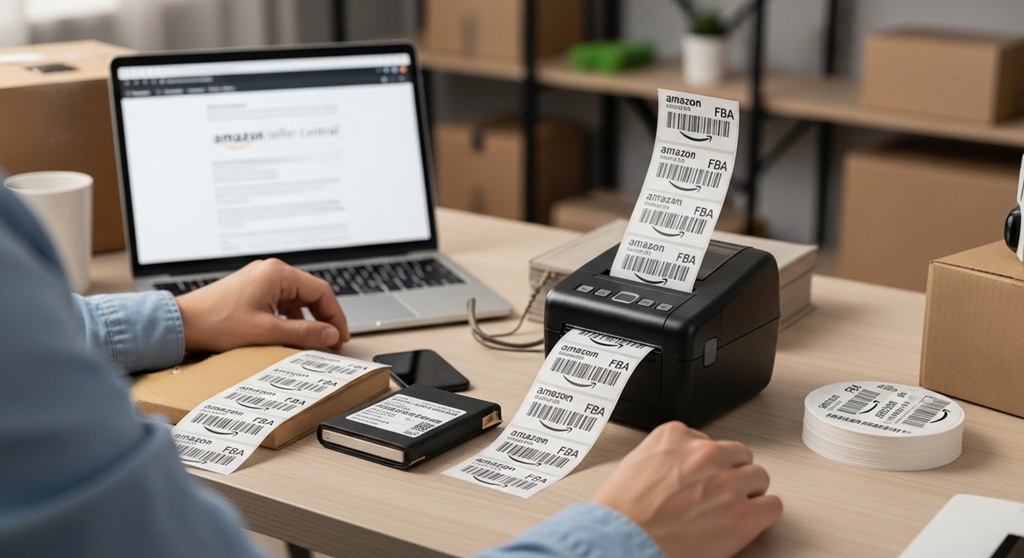
The fastest way to print FBA shipping labels is by using a thermal printer configured to Amazon’s label size requirements. Thermal printers eliminate ink costs, reduce smudging, and improve barcode scannability.
If you sell on Amazon FBA, labels are not optional. Every unit must meet Amazon packaging requirements. A missing or unreadable barcode can delay check-in, cause inventory errors, or trigger non-compliance fees.
According to Amazon Seller Central guidelines, each unit sent to fulfillment centers must have a scannable barcode such as an FNSKU or manufacturer barcode. If the barcode cannot be scanned, Amazon may relabel your product and charge a per-unit fee.
This guide explains how to print FBA shipping labels using a thermal printer, step by step. You will learn:
- Which thermal printer type works best
- What label size Amazon requires
- How to download labels from Seller Central
- How to avoid common barcode errors
- How to comply with Amazon packaging requirements
If you want faster shipment creation, fewer errors, and lower supply costs, this process matters.
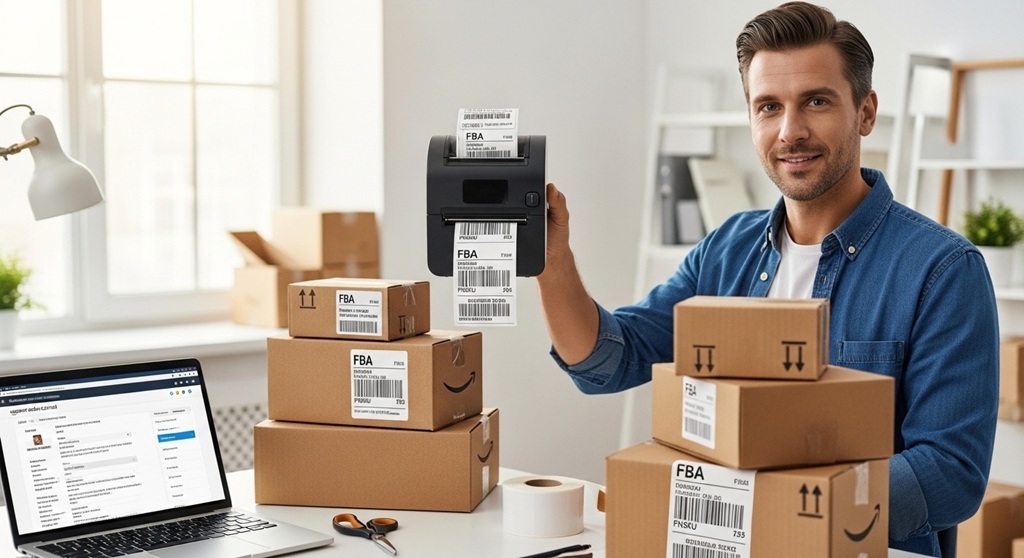
Why Should Amazon Sellers Use a Thermal Printer for FBA Shipping Labels?
Short answer: Thermal printers are faster, cheaper long-term, and produce durable labels that meet Amazon barcode scanning standards.
The Problem: Inkjet and Laser Printers Create Friction
Many new sellers start with regular printers. Over time, problems appear:
- Ink smears during transit
- Toner runs out during large shipments
- Labels fade or peel
- Barcodes fail to scan
When barcodes fail, fulfillment centers cannot check in inventory quickly. That delays availability and affects sales velocity.
The Agitation: Hidden Costs and Delays
Ink cartridges cost more than most sellers calculate. If you print 500–1,000 FBA shipping labels monthly, ink and paper costs increase. Add wasted time from reprints and troubleshooting. The real cost is higher than expected.
Case data from small private label sellers shows switching to a direct thermal printer reduces consumable costs by up to 70% over 12 months because there is no ink or toner required. Labels are heat-printed on thermal paper.
The Solution: Direct Thermal Printing
Thermal printers:
- Use heat instead of ink
- Print high-contrast barcodes
- Support 4×6 label format
- Work with Amazon’s PDF label files
They are built for shipping workflows. That is why most high-volume Amazon sellers use them.
What Label Size Does Amazon Require for FBA Shipping Labels?
Short answer: Amazon FBA shipping labels must be printed clearly, typically in 4×6 inches for shipment labels and 1×2 or 2×3 inches for product FNSKU labels.
1. Box Shipping Labels
When you create a shipment in Seller Central, Amazon generates:
- Carrier shipping labels (UPS, partnered carriers)
- Box ID labels
These are best printed on 4×6 thermal labels. This size ensures the barcode is large enough for warehouse scanners.
2. Product Labels (FNSKU)
For private label sellers, each unit needs an FNSKU barcode unless you use manufacturer barcodes under specific programs.
Common label sizes:
- 1″ x 2″
- 2″ x 3″
Amazon packaging requirements state that barcodes must:
- Be scannable
- Not be curved around edges
- Not be covered by tape glare
- Not overlap seams
If labels are too small or distorted, Amazon may apply a new barcode and charge a fee per unit.
How Do You Set Up a Thermal Printer for Amazon FBA?
Short answer: Install the printer driver, set default label size to 4×6, disable scaling, and test print before mass printing.
Step 1: Install Drivers
Download the official driver from the printer manufacturer’s website. Avoid generic drivers when possible.
Step 2: Configure Label Size
- Go to printer settings
- Select 4×6 label size
- Set orientation to portrait
- Disable “Fit to Page” or scaling
Scaling distorts barcodes. Even slight resizing can make them unreadable.
Step 3: Adjust Print Density
Increase darkness slightly if barcodes look light. But avoid over-darkening, which causes bleeding.
Step 4: Test Scan
Use a barcode scanner app to verify readability before printing 200 units.
How Do You Download and Print FBA Shipping Labels from Seller Central?
Short answer: Create a shipment, approve box contents, download PDF labels, and print without resizing.
Process Inside Amazon Seller Central
- Go to Inventory → Manage FBA Shipments
- Create or continue shipment
- Enter box dimensions and weight
- Approve charges (if partnered carrier)
- Download shipping labels
Amazon generates PDF files formatted for standard shipping labels. When printing:
- Select “Actual Size”
- Do not choose “Shrink to Fit”
- Ensure 100% scale
For FNSKU labels, go to:
- Manage Inventory
- Select product
- Print item labels
Choose label format matching your thermal label size.
What Are Amazon Packaging Requirements for FBA Labels?
Short answer: Every unit must have one scannable barcode, proper placement, and packaging that protects the label.
Core Amazon Packaging Requirements
| Requirement | Details |
|---|---|
| Barcode Visibility | Must be fully visible and scannable |
| Label Placement | Flat surface, not on corners or curves |
| Poly Bag Warning | Suffocation warning required if opening ≥ 5 inches |
| Box Labels | Each box needs unique shipment ID labels |
| Old Barcodes | Must be covered completely |
If you send inventory without meeting these standards, Amazon may:
- Refuse shipment
- Relabel inventory
- Charge preparation fees
- Delay receiving time
Thermal labels help because adhesive quality is stronger and print clarity is consistent.
How Can You Avoid Common FBA Label Printing Mistakes?
Short answer: Avoid resizing, low-quality labels, curved placement, and covered barcodes.
1. Do Not Resize PDFs
Never adjust scaling below or above 100%. Even small changes distort barcode spacing.
2. Use Quality Thermal Labels
Cheap labels may peel during shipping. Adhesion matters because warehouse handling is rough.
3. Do Not Cover with Glossy Tape
Gloss creates reflection. Scanners may fail.
4. Cover Manufacturer Barcodes
If using FNSKU, ensure original UPC is fully hidden to avoid inventory mixing.
5. Keep Labels Dry
Direct thermal labels can fade under heat or moisture. Store inventory properly.
Is a Thermal Printer Worth It for New Amazon Sellers?
Short answer: Yes, if you plan to ship consistently. The investment pays back through time savings and fewer compliance errors.
Entry-level thermal printers cost less than recurring ink expenses over time. Sellers shipping weekly benefit immediately.
Example scenario:
- Printing 800 labels per month
- Ink cost: $40–$60 monthly
- Thermal labels: lower recurring cost
Within months, the printer pays for itself.
Conclusion: How Do You Print FBA Shipping Labels the Right Way?
Printing FBA shipping labels correctly is not complex. But small mistakes create big delays. Amazon packaging requirements are strict because fulfillment centers process millions of units daily.
Use a thermal printer. Set label size properly. Print at 100% scale. Place labels on flat surfaces. Test scan before shipping.
This simple workflow reduces errors, avoids relabeling fees, and speeds up inventory check-in.
If you are serious about scaling your Amazon business, upgrade your labeling system now. Faster prep means faster sales. Review your current setup and switch to a thermal workflow if you want smoother FBA operations.
Frequently Asked Questions About FBA Shipping Labels
Do I need a thermal printer for Amazon FBA?
No, but it is highly recommended. Regular printers work, but thermal printers reduce ink costs and produce more reliable barcodes.
Can I print FBA shipping labels on regular paper?
Yes, but you must tape them securely and avoid covering barcodes with glare. Thermal adhesive labels are more reliable.
What happens if my barcode does not scan?
Amazon may relabel your product and charge a per-unit fee. This can delay inventory availability.
What size are Amazon FNSKU labels?
Common sizes include 1″x2″ and 2″x3″. The barcode must remain clear and readable.
Can I reuse old boxes for FBA shipments?
Yes, but remove or completely cover old shipping labels and barcodes.
Do thermal labels fade?
Direct thermal labels can fade over long exposure to heat. Store products in controlled conditions before shipment.
What to Read Next: How to Prevent Heatstroke in Dogs Naturally
Dive Deeper on These Topics: How to Prevent Heatstroke in Dogs Naturally



Leave a Reply